
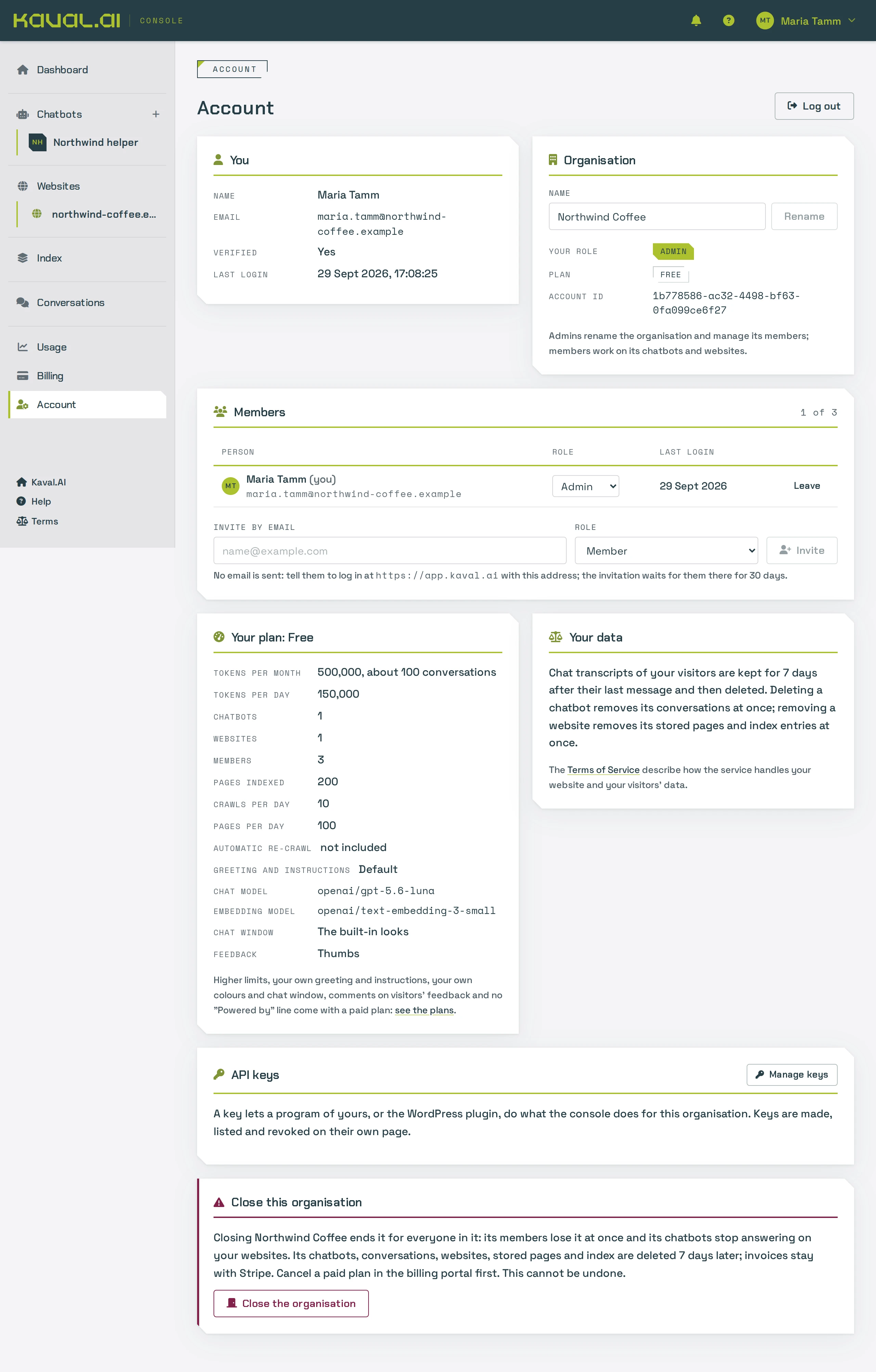
Your Kaval.AI account belongs to an organisation: the chatbots, websites, conversations and plan are the organisation's, and you can invite colleagues to work in it with you. The Account page holds your own details, the organisation's details and its members.
Roles
- Admins can do everything: change the organisation's name, invite and remove people, choose the plan, manage payment, set usage alerts, make API keys and close the organisation.
- Members work with the chatbots, the websites, the index and the conversations, but cannot change the plan, the team or the alerts.
An organisation always keeps at least one admin.
Invite a colleague
- Open Account and find the Members card.
- Under Invite by email, type your colleague's email address.
- Under Role, choose Admin or Member, and click Invite.
- Tell your colleague. Kaval.AI does not send an invitation email: they sign in at app.kaval.ai with that address, or create an account with it.
Your colleague then sees the invitation in a banner at the top of the page and in the menu under their name, and accepts or declines it there. An invitation waits for them for 30 days.
Admins can revoke a pending invitation, change a member's role with the Role list and remove a member, all in the same card. Your plan decides how many people, invitations included, the organisation may have.
Work in several organisations
You can belong to several organisations, for example your own and a client's. Switch between them in the menu under your name at the top right. Each browser tab works in one organisation, so you can keep two open side by side. To leave an organisation, click Leave on your own row in its Members card; the last admin cannot leave.
Your language
The console is available in English, Estonian, Russian and Finnish. Choose yours in the menu under your name. The choice is saved for you and also used for the emails Kaval.AI sends you, such as usage alerts.
Close an organisation
- If the organisation has a paid plan, cancel the subscription first (see Plans and billing).
- Open Account and scroll to Close this organisation.
- Click Close the organisation and type the organisation's name to confirm.
The organisation disappears for every member at once and its chatbots stop answering. Everything it held (chatbots, conversations, websites, stored pages and the index) is deleted seven days later. Invoices stay with Stripe. This cannot be undone.
Your data
The Terms of Service you accepted are at app.kaval.ai/terms. To have your user account deleted, or for any question about your data, write to info@kaval.ai.