
Yes, your website needs one line of code for the chatbot to appear: a short <script> tag we call the
snippet. You paste it once, in a place your website repeats on every page, and the chat bubble shows up in
the bottom-right corner of each page. You do not need to change it again when you edit the chatbot: the look,
greeting and instructions come from the console.
Copy your snippet
- Open Chatbots in the console and click your chatbot.
- Find the Add to your website card.
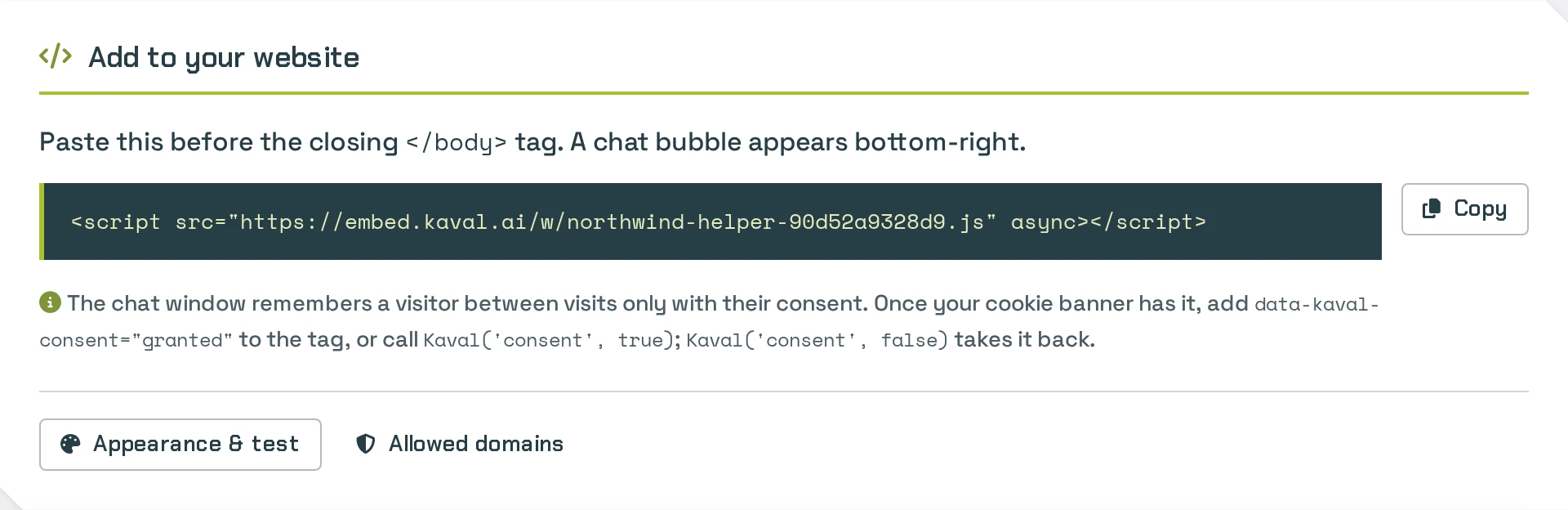
- Click the copy button next to the script tag.
The snippet looks like this, with your chatbot's own id:
<script src="https://embed.kaval.ai/w/YOUR-CHATBOT-ID.js" async></script>
The chatbot talks to visitors only once your website is verified; until then, only the preview in the console answers. See Websites and crawling.
Paste it into your website
Paste the snippet just before the closing </body> tag, on every page where the chatbot should appear. Most
website builders have one place for code that goes on every page:
Plain HTML. Paste it before </body> in each page, or in the shared footer template if your site has one.
WordPress. The easiest way is a plugin that adds code to every page, such as WPCode: add a new snippet of
type HTML, paste the script tag and set it to insert in the site-wide footer. If you edit your theme yourself,
paste it before </body> in the theme's footer.php; use a child theme so a theme update does not remove it.
Shopify. In the Shopify admin, open Online Store, then Themes. Next to your current theme, open the
… menu and choose Edit code. Open theme.liquid under Layout, paste the snippet just before </body> and
save.
Wix. Open your site's Settings, then Custom code (under Advanced), and click Add custom code. Paste the snippet, choose All pages and Body - end, and apply. Wix allows custom code on sites with a connected domain.
Squarespace. Open Settings, then Advanced, then Code injection, and paste the snippet into Footer. Code injection needs a Squarespace plan that includes it.
Webflow. Open Site settings, then Custom code, paste the snippet into Footer code, save and publish the site.
Google Tag Manager. Create a tag of type Custom HTML, paste the snippet, set the trigger to All Pages and publish the container.
After publishing, open your website in a new browser tab. The chat bubble appears in the bottom-right corner.
Where the chatbot may appear
The chat window loads only on the domains listed under the chatbot's Allowed domains. Your website's own address is there from the start. If you use the snippet on another domain, such as a shop on a separate address or a staging site, add it:
- Open your chatbot in the console and click Allowed domains.
- Type the domain, for example
shop.example.com, or*.example.comfor every subdomain. - Click Add.
Anywhere else, the browser refuses to show the chat window, so a copied snippet is useless on someone else's site.
Language
The widget's buttons and messages follow the language of the page it is on. To force one language, add
data-kaval-lang to the snippet:
<script src="https://embed.kaval.ai/w/YOUR-CHATBOT-ID.js" data-kaval-lang="et" async></script>
The chatbot's answers are always in the language the visitor writes in.
Privacy and cookie consent
By default the widget remembers a visitor only for as long as the browser tab is open: the conversation survives moving from page to page, but a new visit starts afresh. The widget sets no cookies.
If your cookie banner has the visitor's consent to be remembered, tell the widget, and it will keep the conversation across visits. Either add the attribute to the snippet, when consent is already known as the page loads:
<script src="https://embed.kaval.ai/w/YOUR-CHATBOT-ID.js" data-kaval-consent="granted" async></script>
or call this from your cookie banner once the visitor agrees:
Kaval("consent", true);
The widget always tells visitors that they are talking to an AI.
The chat bubble does not appear
Check these in order:
- Is the website verified? The chatbot's page in the console says so if it is not. Until then, only the preview talks to it.
- Is the domain allowed? The address in the browser must match one of the chatbot's Allowed domains,
www.included. Add the missing one. - Has the account reached a limit? When the day's or the month's tokens are used up, the chatbot is hidden until the limit resets, and its page in the console says until when.
- Is the snippet on the page? Open the page, view its source and search for
embed.kaval.ai. Caching and optimisation plugins sometimes need their cache cleared after you add it. - Does your website have a Content Security Policy? Then allow
https://embed.kaval.aiinscript-srcandframe-src.
Still stuck? Open the browser's developer console on your page: the widget says there why it did not load. Send us that message and the page address at info@kaval.ai.