Every conversation your chatbot has is kept in the console, together with a short analysis of how it went. This walkthrough explains what the numbers mean, how topic analysis works, how to keep an eye on your plan's limits and, most useful of all, how to find a bad answer and fix it.
The Conversations page
Open Conversations in the sidebar. The page covers every chatbot of your account. At the top you can:
- Pick a chatbot, if you have more than one.
- Pick a time range, such as the last 7 or 30 days.
- Include previews: tick it to count the conversations you had in the console's preview too. They are left out by default, so your own testing does not skew the numbers.

The tiles count the range's:
- Conversations: one visitor's chat, from the first message until they close the tab or click the + (new conversation) button in the chat window.
- Positive: the share of conversations where the visitor seemed satisfied.
- Resolved: the conversations in which the visitor got what they came for.
- Thumbs up and Thumbs down: the ratings visitors gave to individual answers.
Conversations by sentiment shows each day's conversations split into positive, neutral and negative, so you can see a bad day at a glance.
How the analysis works
About ten minutes after a conversation goes quiet, Kaval.AI reads it and writes down:
- a summary of one or two sentences: what the visitor wanted and whether they got it;
- the sentiment: positive, neutral or negative;
- whether it was resolved;
- the intent: what the visitor came for, such as "delivery question" or "product recommendation";
- a few keywords: the topics the conversation touched, such as "delivery" or "espresso";
- the visitor's language.
If the visitor comes back to the same conversation later, it is analysed again. The analysis uses a small part of your plan's tokens, like the chatbot's own answers.
Topics and intents
Below the chart, two lists add up the analysis over the whole range:
- Topics counts the keywords: what visitors talk about. The longer the bar, the more conversations touched the topic.
- What visitors came for counts the intents: why they opened the chat.
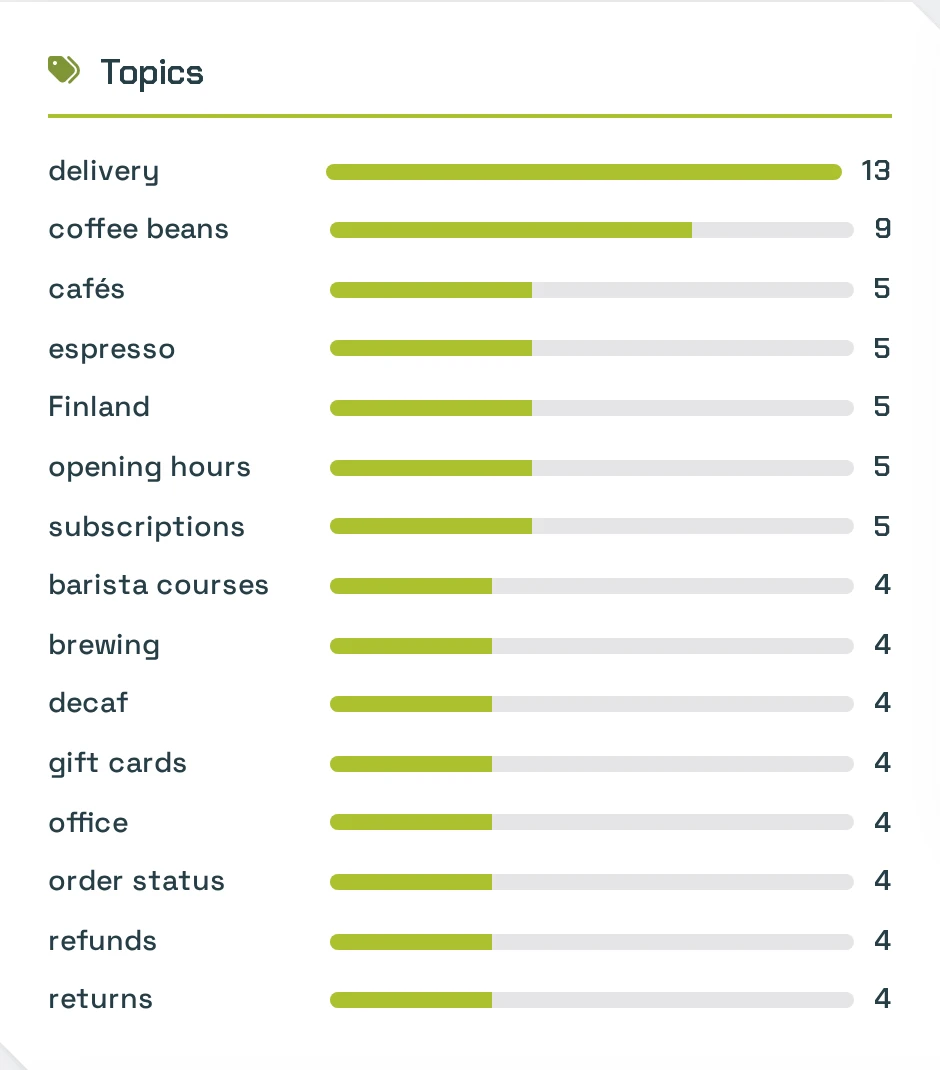
Use them to decide what to improve on your website, not only in the chatbot:
- A topic near the top that your website barely covers is a page worth writing.
- An intent you did not expect, such as "wholesale enquiry", may deserve its own page or a line in the chatbot's instructions.
- A topic that shows up often in negative conversations points at a gap. Filter the history by Negative to check.
Read a conversation
Conversation history lists the conversations with their date, first message, number of turns, sentiment, intent and feedback. Narrow it down with:
- Search messages: find every conversation that mentions a word, such as a product name.
- Any sentiment: show only positive, neutral or negative conversations.
- Any feedback: show only conversations with a thumbs up or a thumbs down.
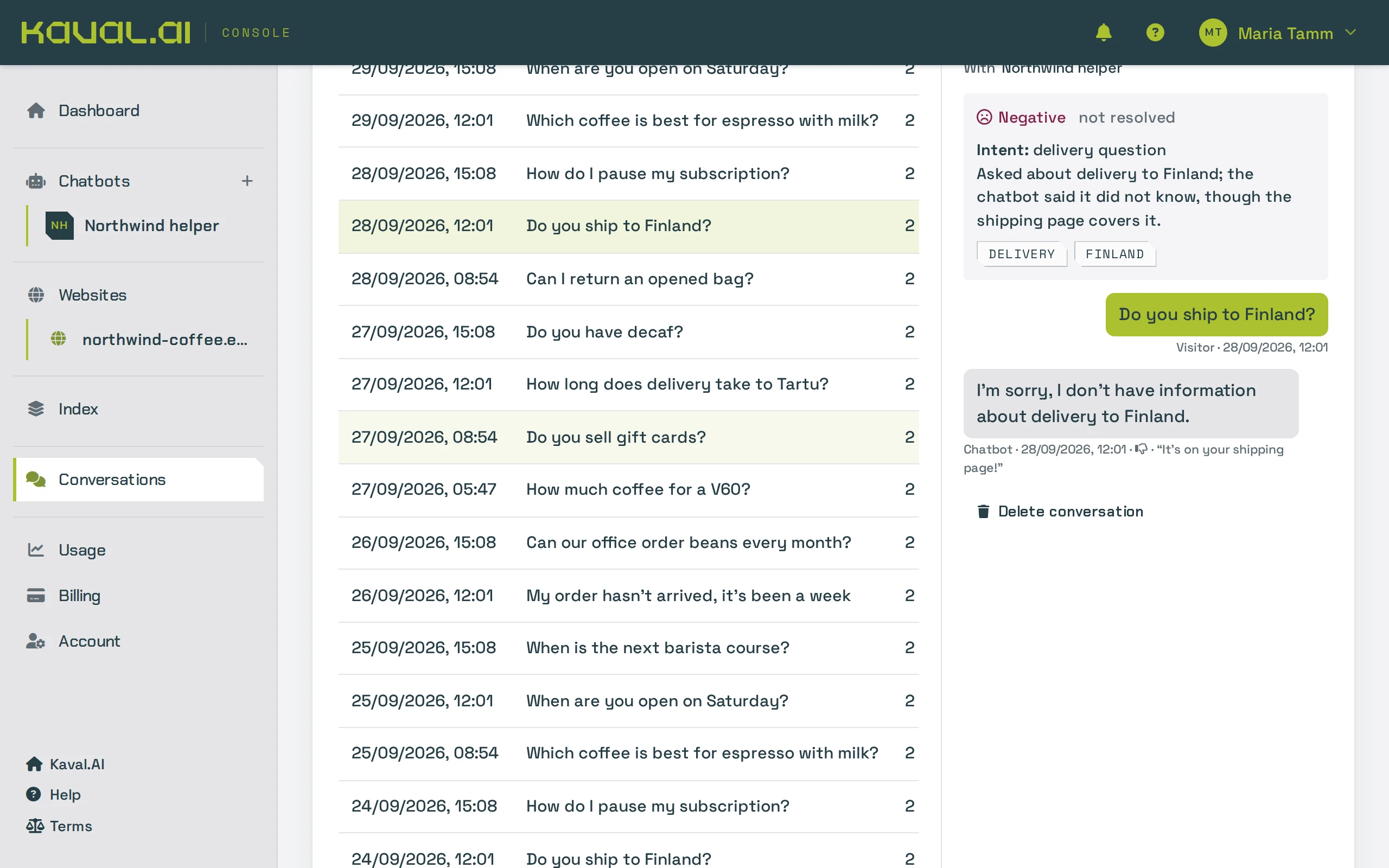
Click a row to open the conversation on the right: its summary, sentiment, intent and keywords at the top, then every message. A thumbs rating shows under the answer it was given to, with the visitor's comment if they left one. Comments are available on paid plans.
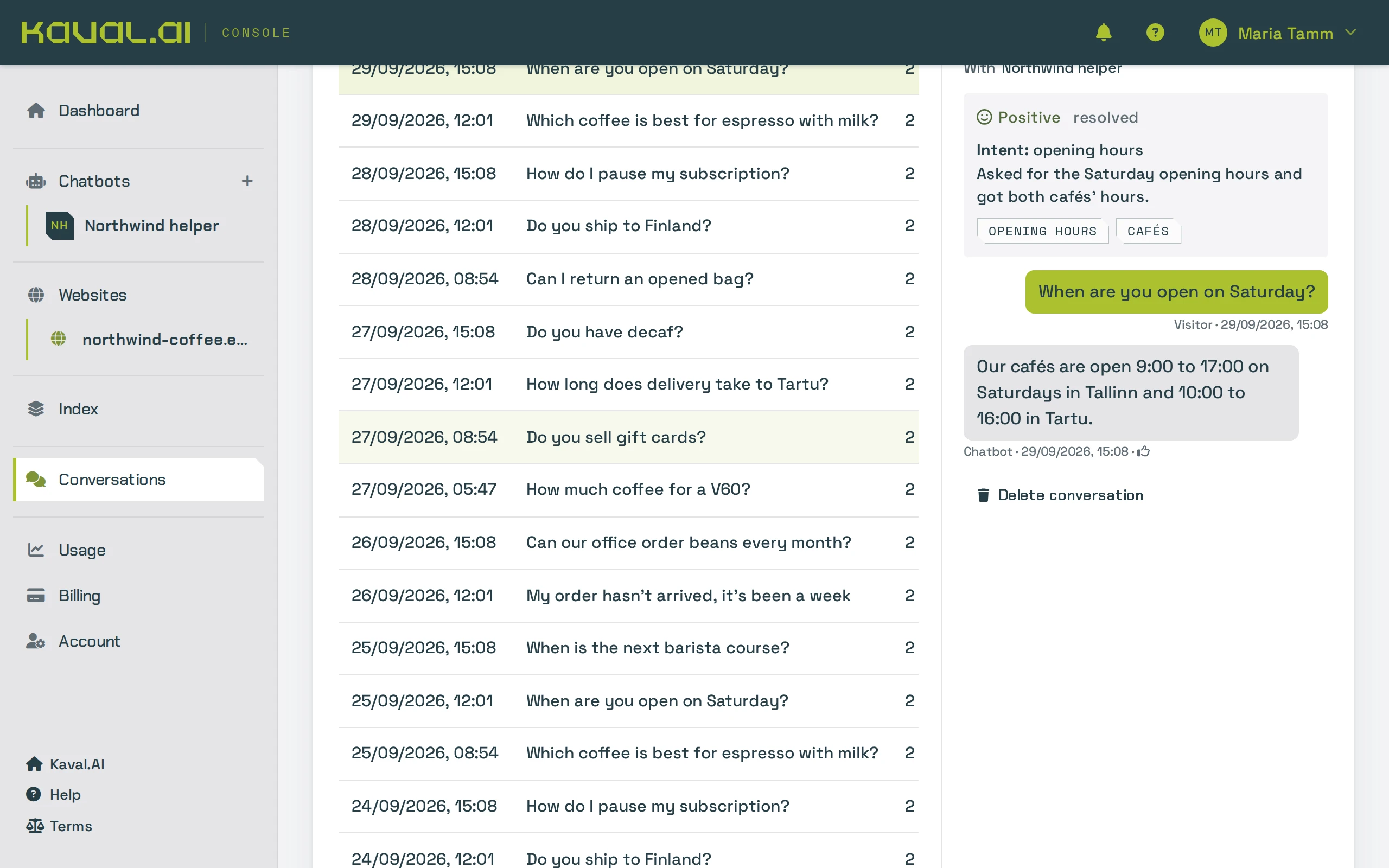
Delete conversation at the bottom removes a transcript for good, for example when a visitor asks you to. Conversations are otherwise deleted automatically after your plan's retention period: 7 days on Free, 90 days on Starter and a year on Business and Scale.
Find out why an answer went wrong
When a visitor got a bad answer, the cause is almost always one of three things: the information is not on your website, the crawler has not read the page, or the chatbot found the page but used it badly. This walkthrough tells them apart.
Find the bad conversations
- On Conversations, set Any feedback to thumbs down, or Any sentiment to Negative.
- Open a conversation and read the summary. It often says exactly what went wrong: "the chatbot said it did not know, though the shipping page covers it".
- Copy the visitor's question.
Check what the chatbot can find
- Open Similarity search (in Index, the Similarity search button).
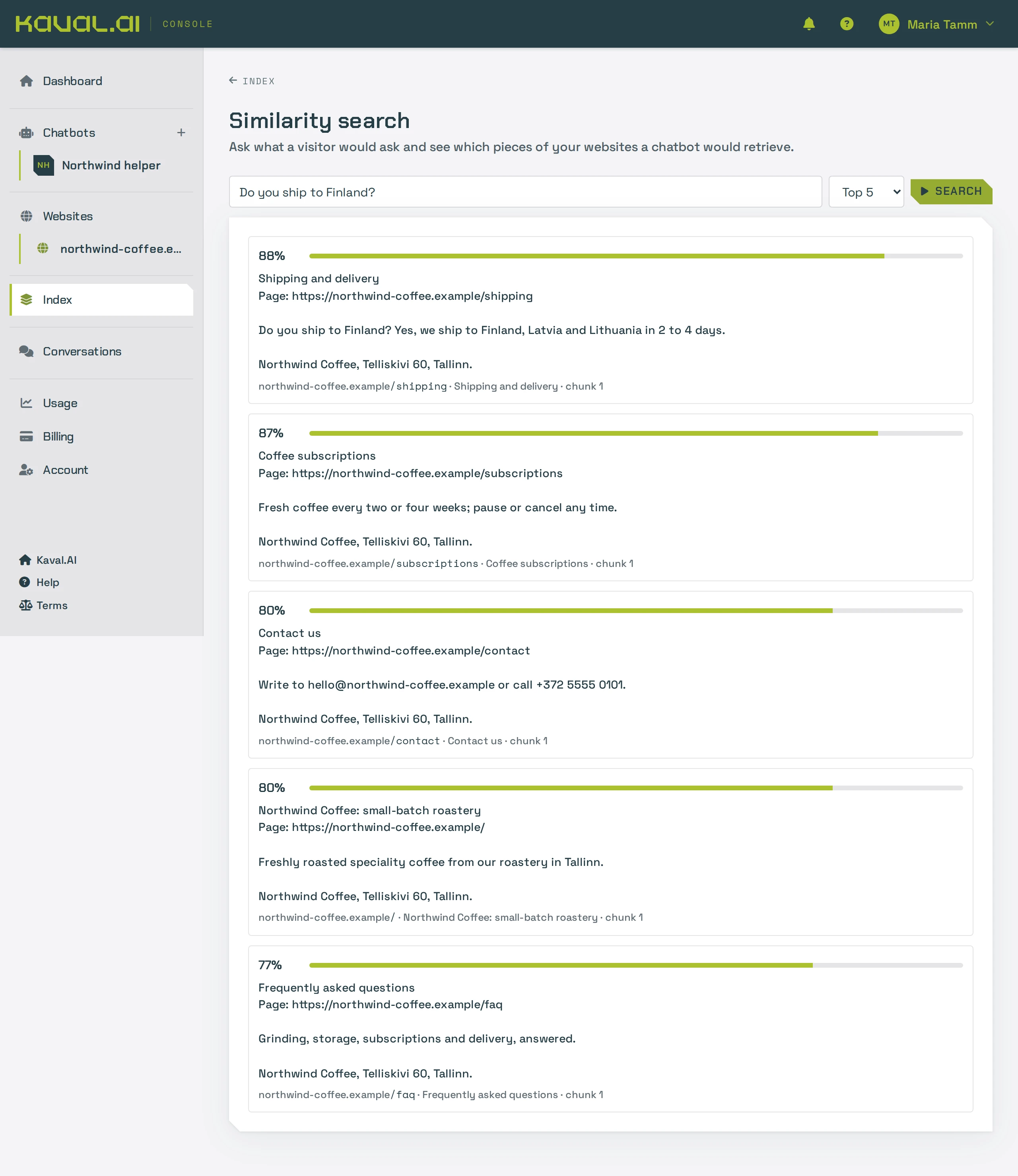
- Paste the visitor's question and click Search. You see the passages of your website the chatbot would read for this question, best match first, each with its page and a match score.
Decide what to fix
- Compare the results with what the chatbot said:
- The right passage is at the top, yet the answer was wrong. The chatbot found the information but used it badly. The page may say it ambiguously: make it clearer on your website. Or give the chatbot guidance in its instructions, such as "when asked about delivery, name the countries we ship to". See Change how the AI behaves.
- The right page is missing from the results. Check whether it was crawled: open the website's Crawled pages in the console and look for it. If it is missing or out of date, crawl that page again with the refresh button on its row, or click Recrawl for the whole website. If the page is not linked from anywhere, link to it or add it to your sitemap. See Websites and crawling.
- No page covers the question. The chatbot was right not to guess. Add the information to your website, then crawl the page.
Check the fix
- Run the similarity search again: the right passage should now be near the top.
- Open your chatbot's Appearance & test and ask the preview the visitor's question. When the answer is right, you are done.
Tip: Make a habit of it. Once a week, filter by thumbs down and negative sentiment and go through the new ones. A few minutes of fixes each week add up to a noticeably better chatbot.
Check your usage
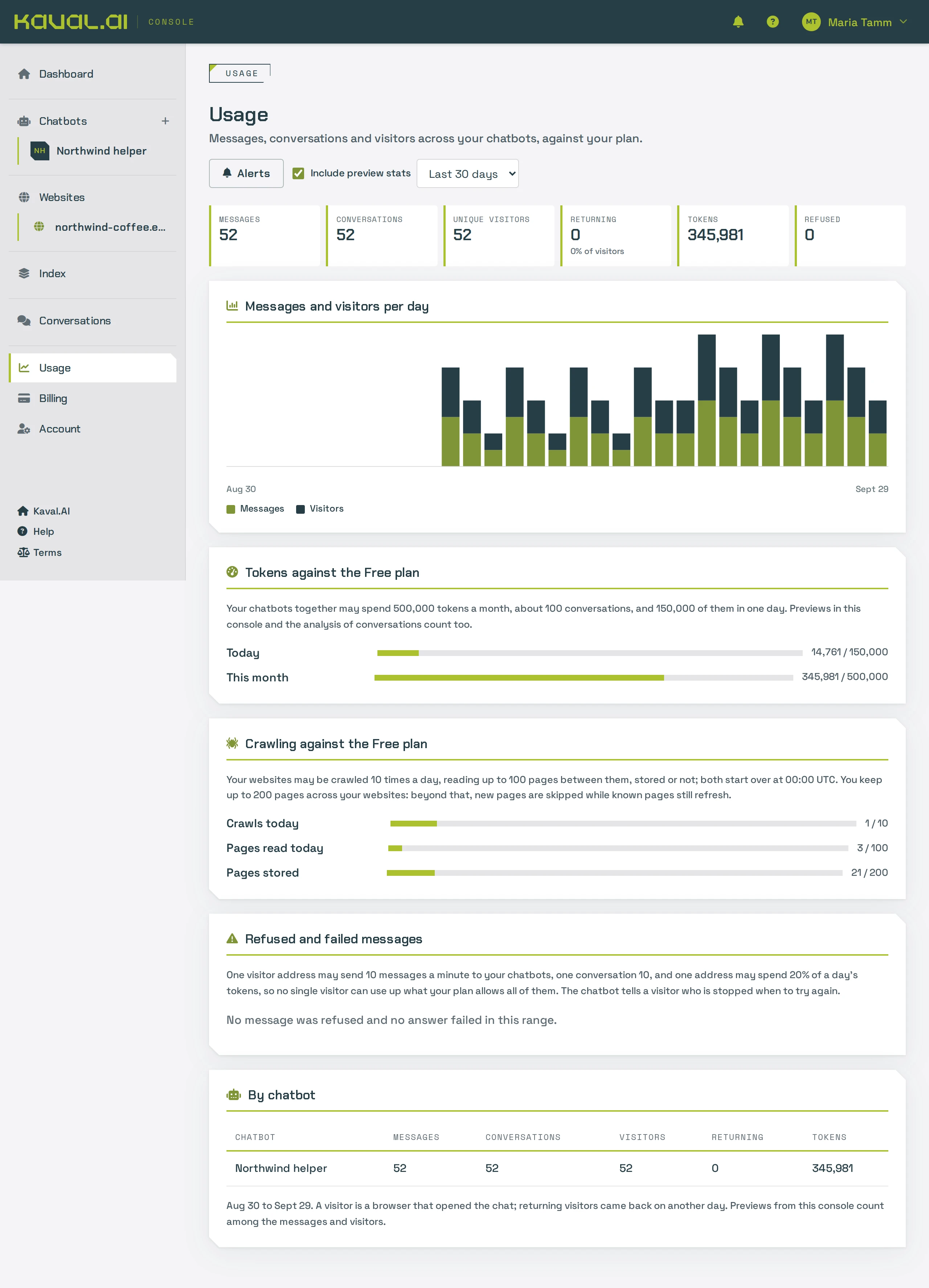
Usage shows what your chatbots did over a range and where your account stands against its plan today:
- Messages, conversations and visitors per day, with how many visitors came back.
- Tokens against your plan: today's and this month's use of AI, against your plan's limits. Previews in the console and the conversation analysis count too.
- Crawling against your plan: today's crawls and pages read, and the pages stored across your websites.
- Refused and failed messages: messages the chatbot turned away, and why. For example, one visitor sending too many messages a minute, or the account reaching its daily limit.
- By chatbot: the same figures for each of your chatbots.
When the day's or the month's tokens run out, your chatbots are hidden on your websites until the limit resets: at midnight UTC for the day, on the 1st of the month for the month. The pages of the console say so. To avoid it, set up alerts or move to a larger plan; see Plans and billing.
Get alerts before you reach a limit
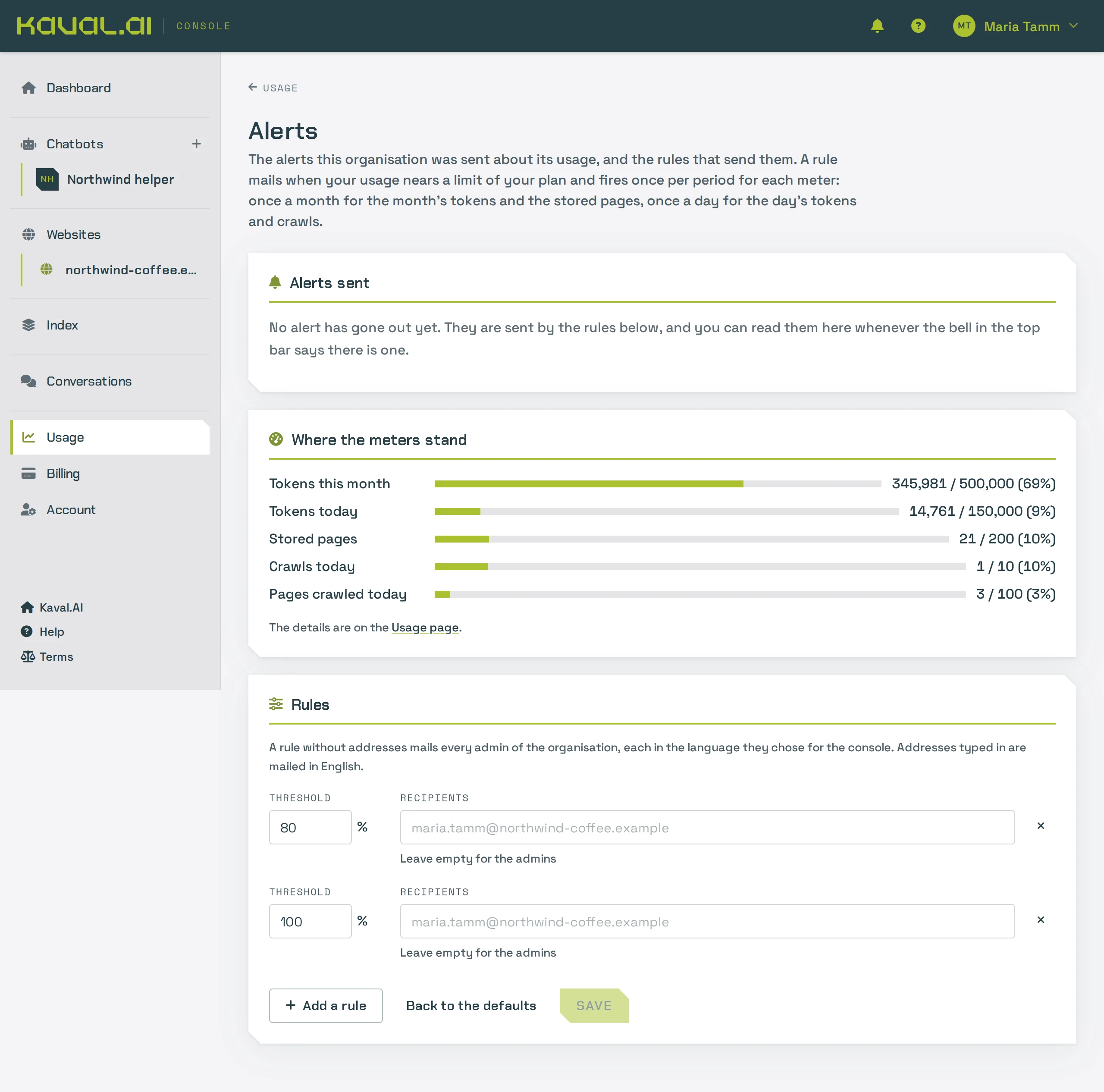
Alerts, the Alerts button on the Usage page, emails you when any limit reaches a share you choose. Every new account has two alerts: one at 80% and one at 100%.
- Open Alerts and scroll to Rules.
- Click Add a rule, or change an existing one.
- Set the Threshold in percent. Under Recipients, type the email addresses to send it to, or leave it empty to mail the organisation's admins, each in the language they chose for the console.
- Click Save. Back to the defaults restores the two rules a new account starts with.
Each rule sends at most one email per period for each limit: once a month for monthly limits, once a day for daily ones. Where the meters stand shows each limit now. The bell at the top of the console counts the alerts you have not seen yet, and Alerts sent lists them. Only admins can change the rules.