
Your chatbot should feel like part of your website. This walkthrough covers everything visitors see: the chat window's look, your logo and fonts, where the bubble sits, and the chatbot's name and greeting. Every change is live on your website as soon as you save it. You never need to change the snippet.
Note: On the Free plan the chatbot uses the Kaval.AI look with "Powered by Kaval.AI" and the default greeting. The Starter, Business and Scale plans unlock everything in this article. See Plans and billing.
Open the appearance page
- Open Chatbots and click your chatbot.
- Click Appearance & test.
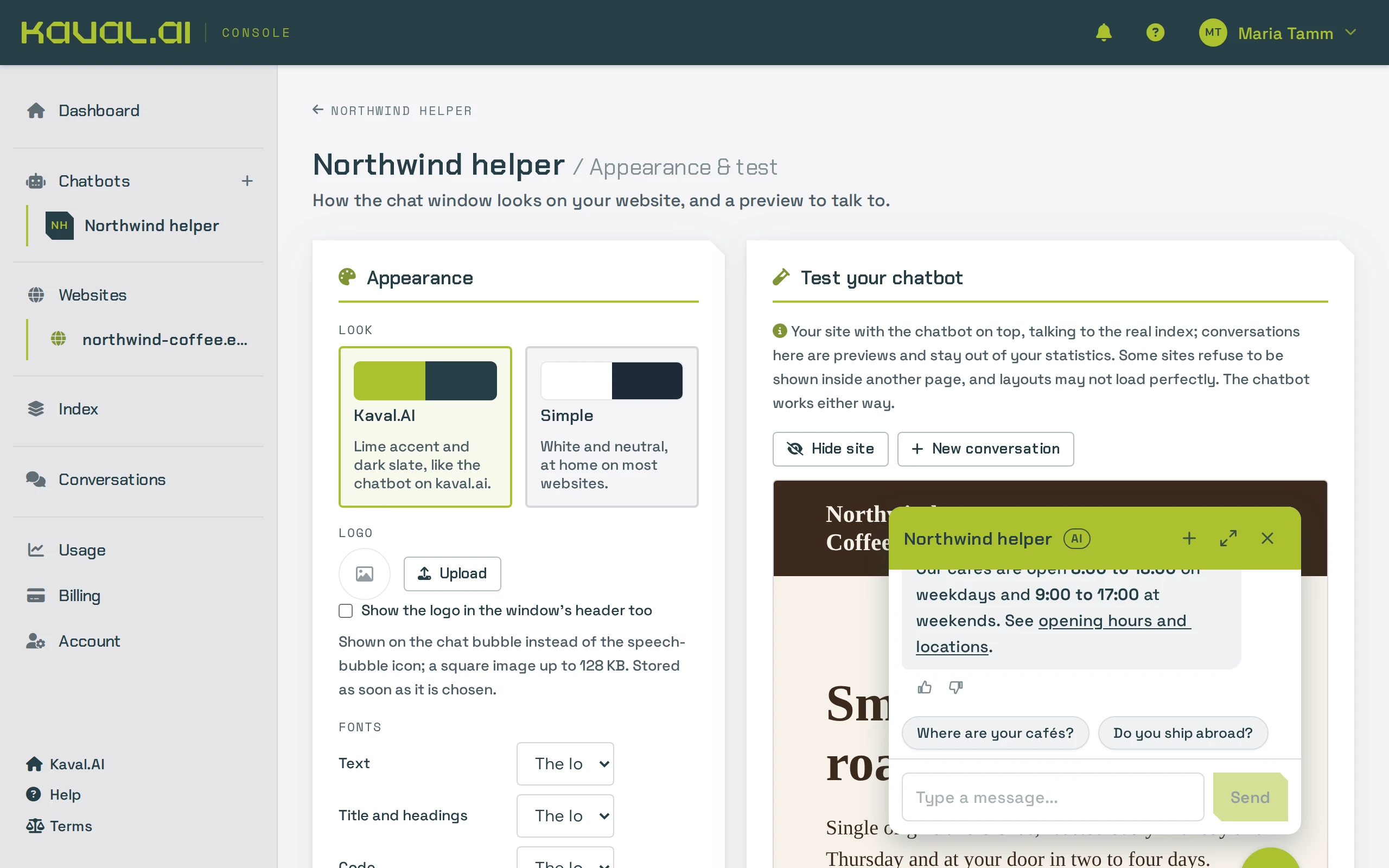
The page has two halves. On the left, Appearance holds every setting. On the right, Test your chatbot shows your own website with the real chat window on top, updated as you change things. You can talk to it too: conversations here are previews and stay out of your statistics. Hide site hides your website behind the preview, and New conversation starts over.
Choose a look
Under Look, pick one of the two built-in designs:
- Kaval.AI: a lime accent and dark slate.
- Simple: white and neutral, at home on most websites.
The look sets every colour and font at once. Everything below changes it further.
Add your logo
- Under Logo, click Upload and choose a square image: PNG, JPEG, WebP, GIF or SVG, up to 128 KB.
- The logo replaces the speech-bubble icon on the chat bubble. Tick Show the logo in the window's header too to put it beside the chatbot's name as well.
The logo is saved as soon as you choose it. Remove takes it away again.
Set your colours and fonts
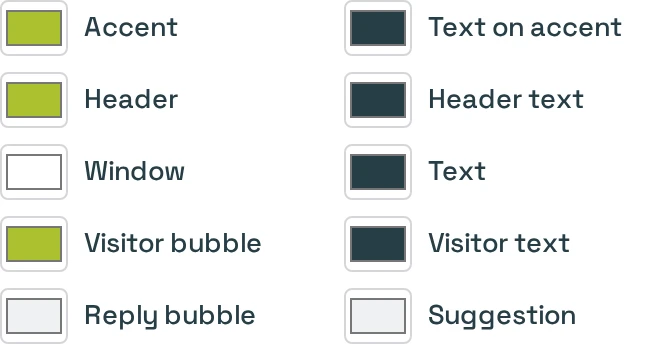
Colours has a swatch for each part of the chat window. Click one to pick a colour:
| Colour | Where it shows |
|---|---|
| Accent and Text on accent | The send button, the bubble and links |
| Header and Header text | The bar at the top with the chatbot's name |
| Window and Text | The window's background and ordinary text |
| Visitor bubble and Visitor text | The visitor's own messages |
| Reply bubble | The chatbot's answers |
| Suggestion | The suggested follow-up questions |
Corner radius rounds the window's and the bubbles' corners, in pixels. Use the look's colours undoes your colour changes.
Fonts sets the typeface for the text, for the title and headings, and for code. Pick one of the web fonts offered, or the system fonts that look native on each device. Leave a font on The look's own to keep the look's choice.
Tip: Use your website's main button colour as the Accent, and make sure Text on accent is readable on it: dark text on a light accent, white text on a dark one.
Size and behaviour of the chat window
Under Chat window:
- Width and Height of the window, in pixels or as a percentage of the visitor's screen. The default is 380 × 560 pixels.
- Width when enlarged: how wide the window gets when the visitor clicks the enlarge button.
- Open the chat when the page loads: the window starts open instead of as a bubble. Use it sparingly: on every page it can feel pushy.
- Start enlarged: the window opens at its enlarged width.
- Let visitors resize the window by dragging its edges.
- Close button in the header. Without it, the bubble closes the chat.
- "Powered by Kaval.AI" below the message box. Off by default on paid plans.
- "AI" label beside the chatbot's name. See the note below before you switch it off.
On phones the window always fills the screen, whatever the size settings.
Move the bubble
Under Bubble:
- Size: the bubble's diameter in pixels.
- From the right edge and From the bottom edge: extra room between the chatbot and the corner of the screen. Use them when something else already sits in that corner, such as a cookie banner button or a "back to top" arrow.
Save
Click Save appearance. The console confirms with "Saved. Live as v…": the new look is on your website at once. Discard throws away changes you have not saved.

Name and greeting
The chatbot's name and its first message are on the Prompt & model page:
- Open your chatbot and click Prompt & model.
- Chatbot name is shown at the top of the chat window. A name that says it is an assistant, such as "Acme assistant", tells visitors at once what they are talking to.
- Greeting is the first message a visitor sees. Say what the chatbot can help with: "Hi! I'm Northwind's helper, an AI. Ask me about our coffee, orders, delivery or our cafés."
- Below it, there is a Greeting in … field for each language your websites are in. A visitor on your Estonian pages sees the Estonian greeting, and the chat window's buttons are in Estonian there too. Leave a language empty to use the main greeting.
- Click Save changes.
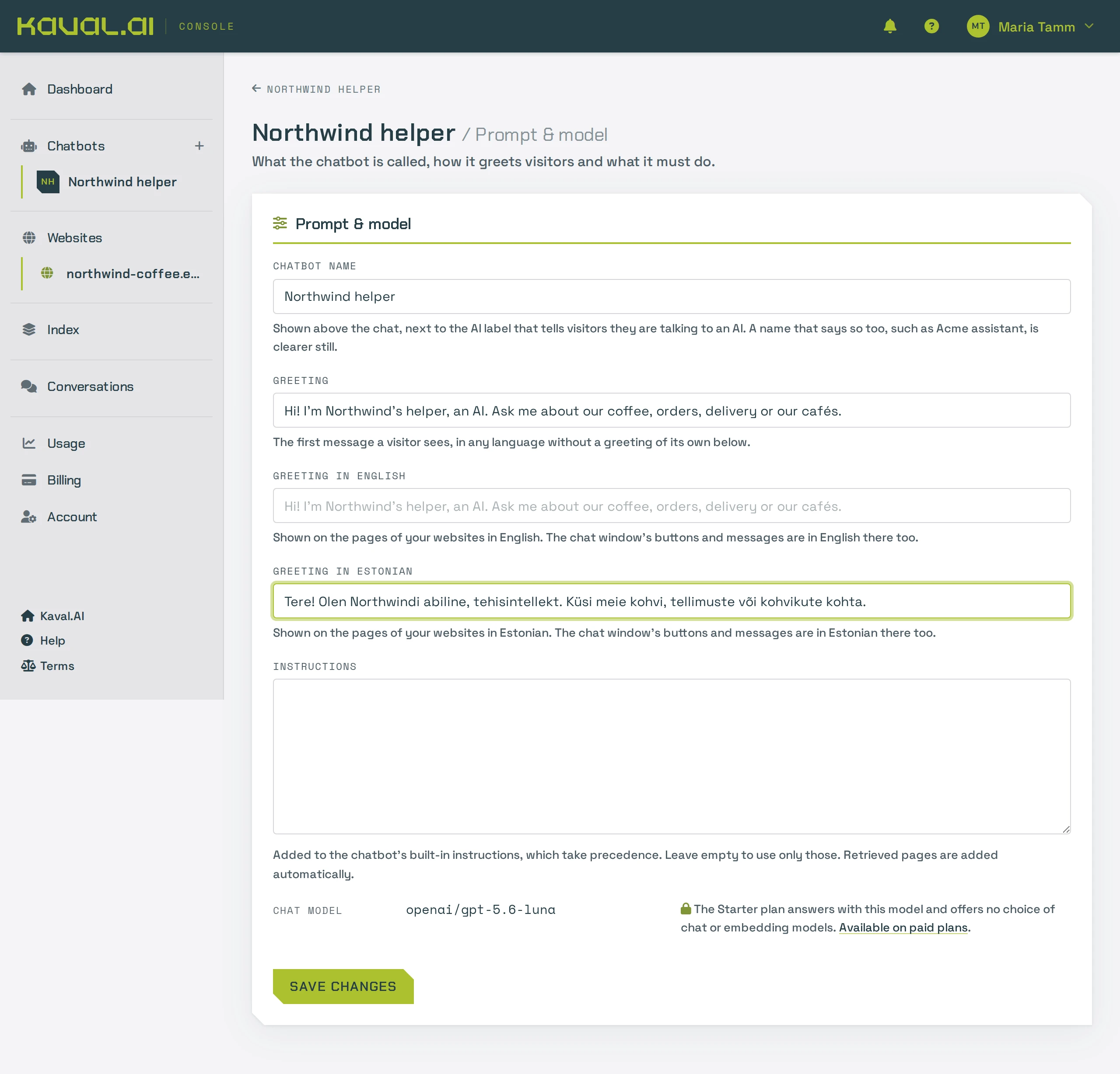
The Instructions box on the same page changes how the chatbot answers. See Change how the AI behaves.
The AI label and the law
Visitors must know that they are talking to an AI. This is required by the EU AI Act, and by our Terms of Service. By default the chat window shows an AI label beside the chatbot's name.
On a paid plan you can switch the label off, for example when it clashes with your design. If you do, you must tell visitors another way: in the chatbot's name ("Acme virtual assistant") or in the greeting ("Hi, I'm an AI assistant…"), in every language you set a greeting for.
Where the chatbot may appear
Allowed domains on the chatbot's page lists the websites the chat window may load on. Your website's own address is there from the start. Add others, such as a separate shop domain, with Add. See Add the chatbot to your website.