
A chatbot answers from the pages of your websites. Kaval.AI reads those pages with its crawler, the way a search engine does, and keeps them in your account's index. This article covers adding a website, verifying it and keeping it up to date.
Add a website
The new-chatbot wizard adds your first website for you (see Getting started). To add another one:
- Open Websites in the console and click Add new website.
- Type the website's address, for example
https://www.example.com. - Confirm. The website appears in the list, not yet verified, and the crawler reads its start page.
A chatbot can answer from several websites of your account. To connect one, open the chatbot, click the Websites tile and pick it from the list. Your plan decides how many websites the account may have; see Plans and billing.
Verify that the website is yours
Anyone could type any address into the console, so Kaval.AI asks you to prove that the website is yours. Until you do, the crawler reads only the start page and the chatbot answers nobody but you, in the console's preview.
- Open the website from Websites and click Verify. The wizard shows the same proofs in its ownership step.
- Choose one of the three proofs and publish it on your website:
- HTML tag: a
<meta>tag to paste into the<head>of your start page. The easiest one on website builders, which usually have a field for code in the head. - File: a small text file to upload to the root of your website.
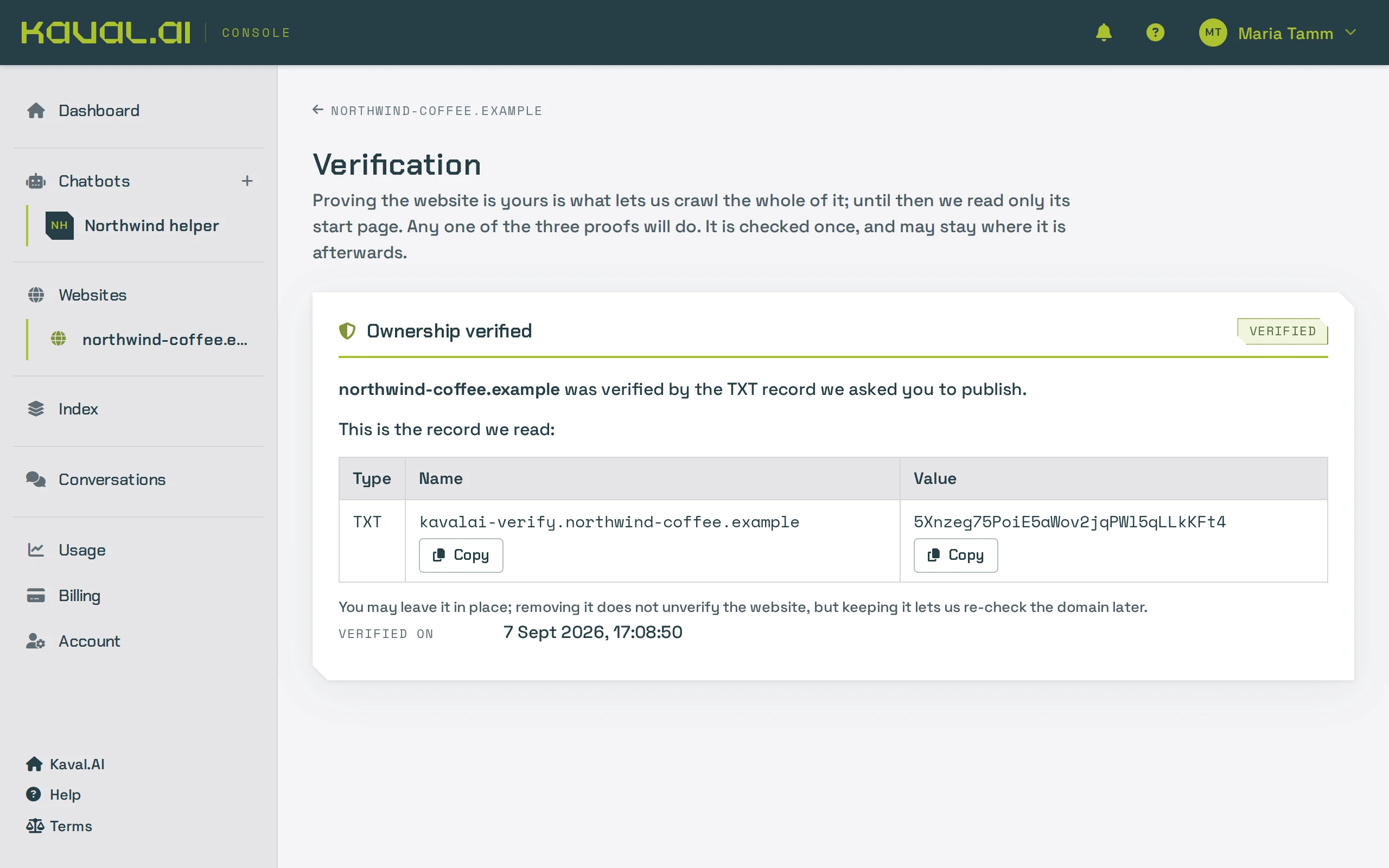
- DNS record: a TXT record to add at your domain's DNS provider. This proof also covers your subdomains.
- HTML tag: a
- Click Check. While the wizard's ownership step is open, it also checks every 15 seconds by itself.
Once the proof is found, the website shows as verified and the full crawl starts right away. You can remove the proof afterwards, but leaving it in place does no harm.
Tip: A DNS change can take from a few minutes to a few hours to be visible. If the check fails at first, try again later; nothing is lost in the meantime.
How crawling works
A crawl starts from your start page, follows the links on your pages, reads your sitemap and respects your
robots.txt. It stores each page's text, and the pages go into the index as they arrive, ready for the chatbot
to use. The crawler introduces itself as KavalAIBot/1.0 (+https://kaval.ai/bot), which is useful if your
hosting provider or firewall blocks unknown bots.
Some pages are skipped: pages marked noindex, pages that are very large and pages that redirect to another
website. The website's page in the console lists what was skipped and why.
A page is stored and indexed again only when its text changed, not when only its layout did.
Crawl again after you change your website
When you add or change pages, crawl again so the chatbot learns about them:
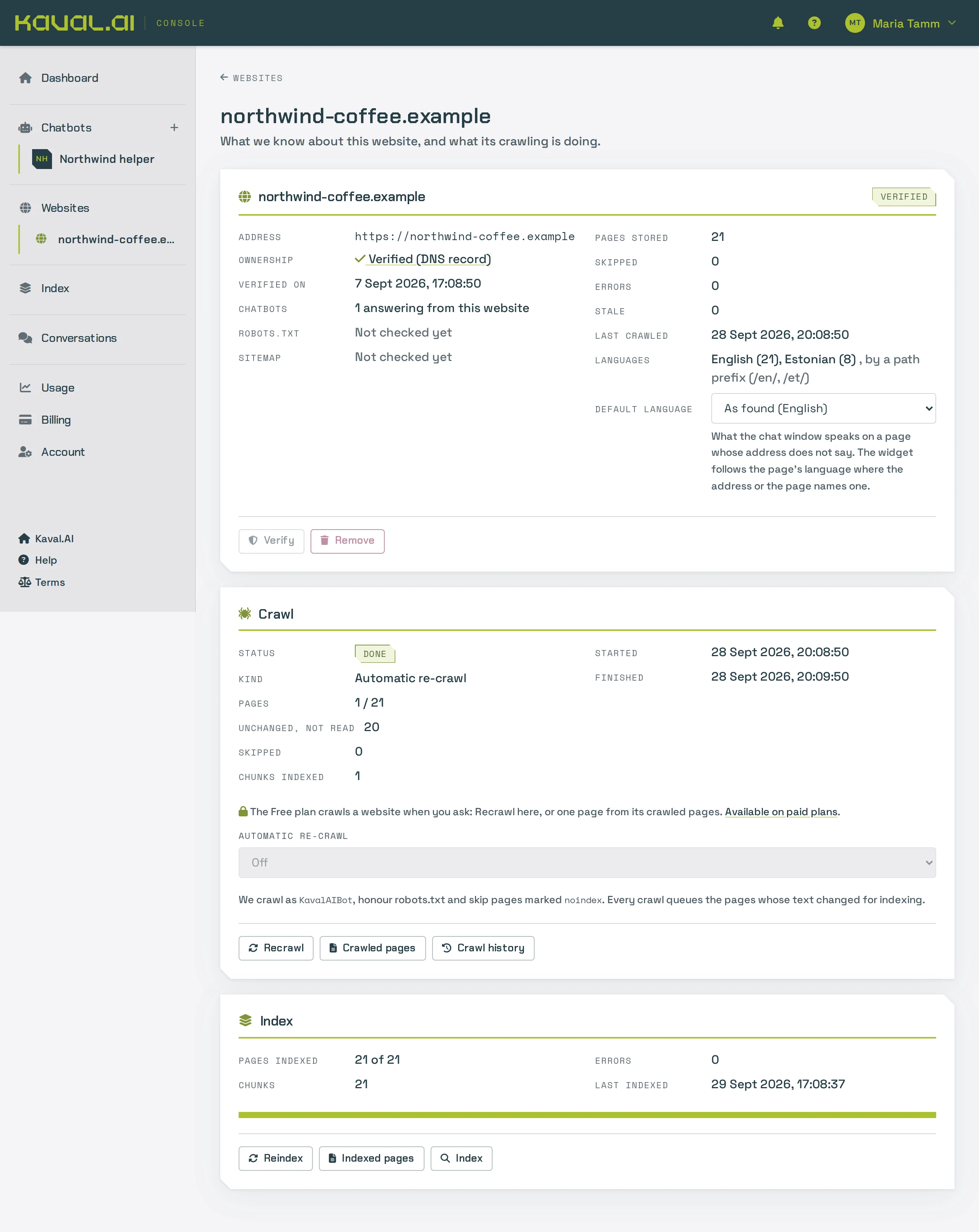
- The whole website: open the website in the console and click Recrawl. This works on every plan, up to the day's crawls of your plan.
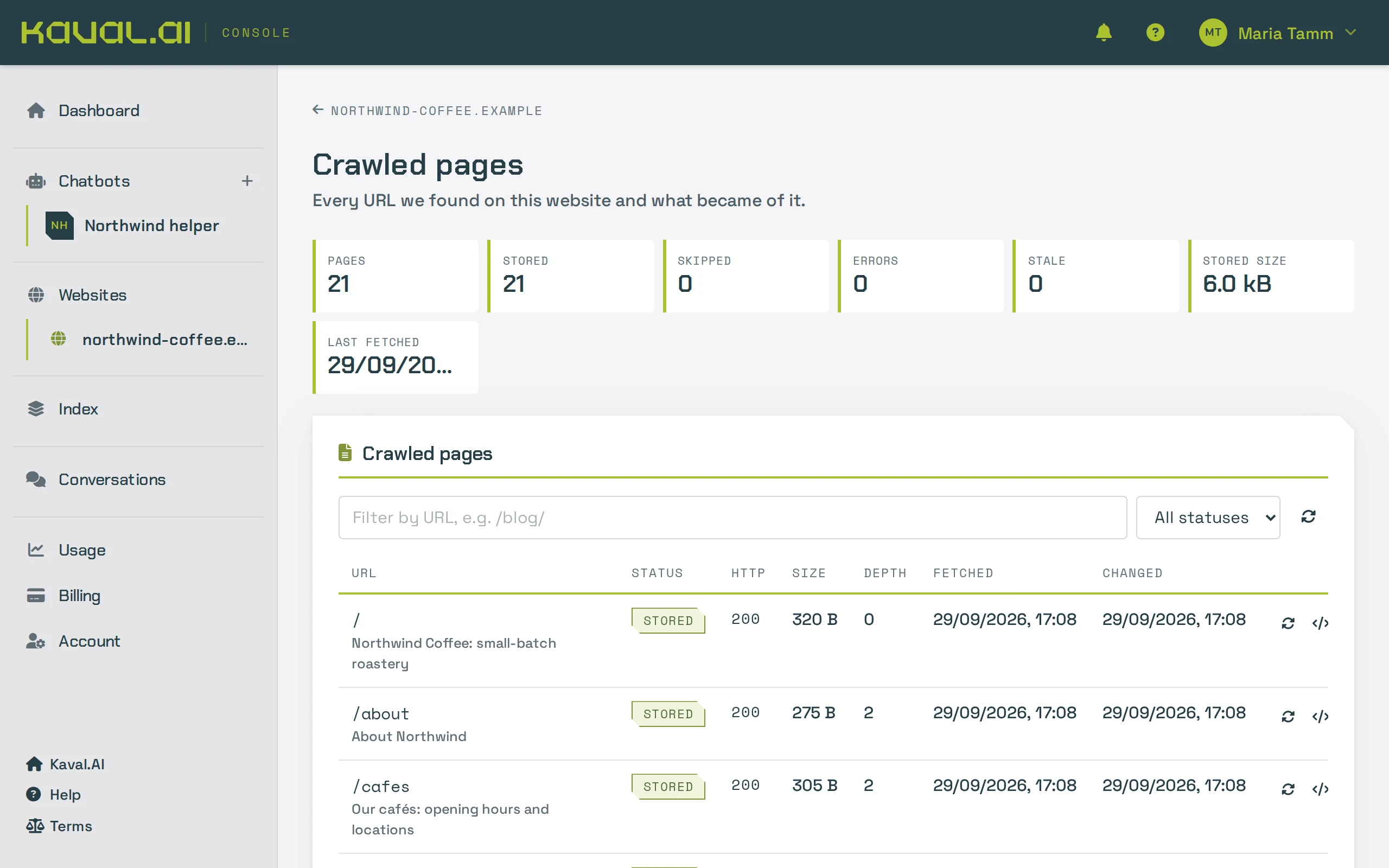
- One page: open Crawled pages, find the page and click the refresh button on its row. This reads just that page and costs one page of the day, not a whole crawl. Use it after editing a single page.
Crawl history lists each crawl with what it was, how many pages it stored and why it stopped.
Automatic re-crawls
On a paid plan your verified websites are re-crawled automatically: daily on Starter, every 12 hours on Business and every 6 hours on Scale. The crawl box on the website's page sets how often, from as often as the plan allows to never, and shows when the next one starts. On the Free plan a website is crawled only when you ask.
Automatic re-crawls are efficient: before reading a page they ask your website whether it changed, skip the ones that did not, and visit often-changing pages more often than static ones. They use at most half of the day's pages, so your own crawls always have room.
Languages
Each crawl detects the language of every page and how your website switches languages, for example with a
/et/ path or a subdomain. The website's page lists the languages it found. Choose the default language
there: the chat window speaks it on pages whose address does not say which language they are in.
Remove a website
Open the website and click Remove, then type its address to confirm. This deletes its stored pages and its part of the index. Chatbots connected to it stop answering from it; a chatbot always keeps at least one website.